
CLI
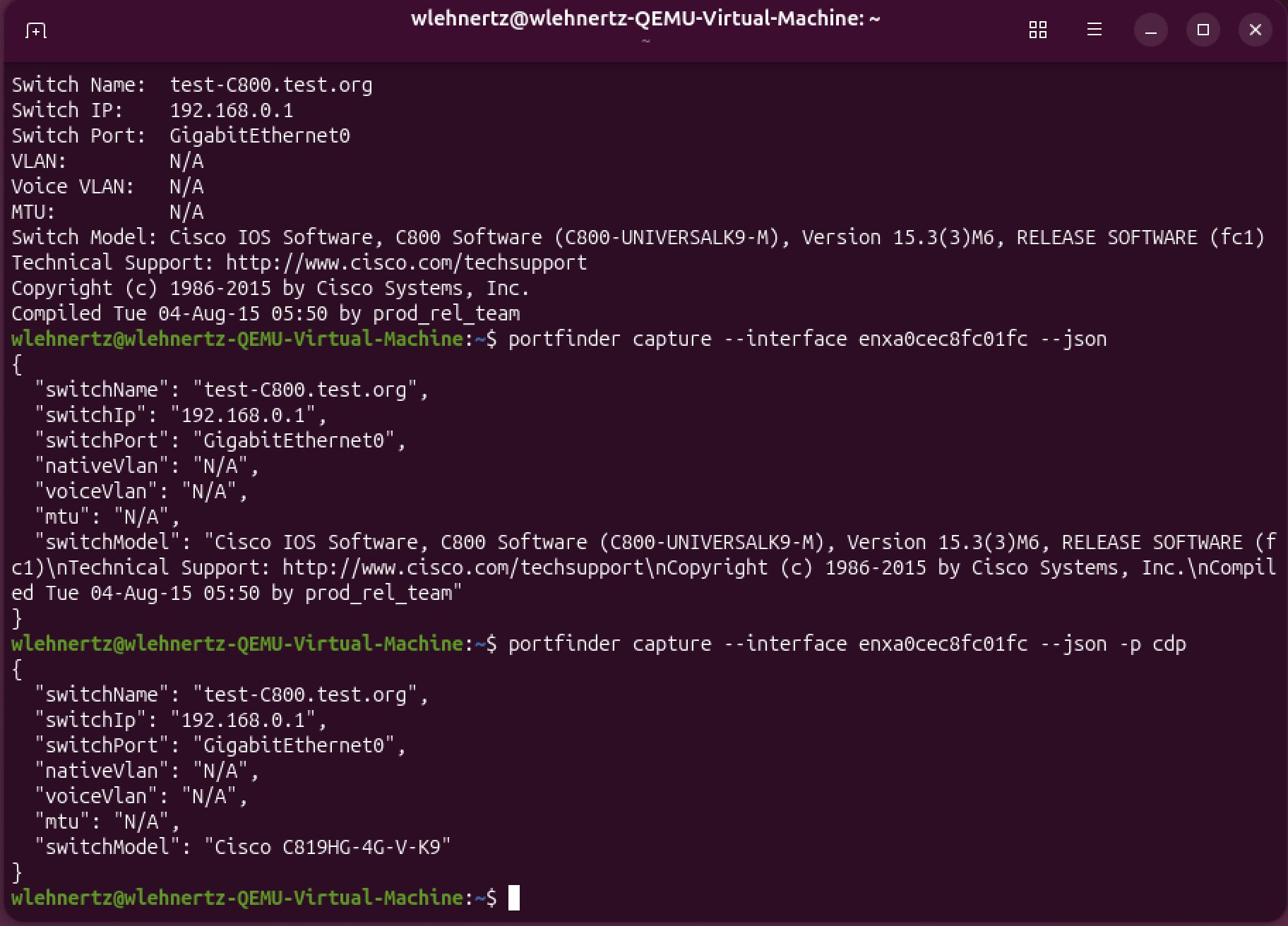
The CLI shares the capture engine with the GUI. Pass a subcommand to use the CLI; run with no args to launch the GUI.
portfinder --helpGlobal flags
Section titled “Global flags”These work alongside any subcommand and are mutually compatible with the GUI’s persisted log settings — CLI flags override at runtime without writing to disk.
| Flag | Description |
|---|---|
-v |
Bump log verbosity to debug. |
-vv |
Bump log verbosity to trace (per-pcap-tick noise; rarely useful). |
-q |
Quiet — warnings + errors only. Conflicts with -v. |
--log-file <PATH> |
Override the platform-default log path for this invocation. Process-scoped — doesn’t touch persisted settings or the GUI’s log location. |
portfinder -v capture --protocol LLDPportfinder -q capture --jsonportfinder --log-file /tmp/pf.log captureSubcommands
Section titled “Subcommands”capture
Section titled “capture”Capture one CDP, LLDP, or MNDP packet and print the switch info.
portfinder capture --interface en0 --protocol LLDP| Flag | Default | Description |
|---|---|---|
-i, --interface |
empty (sniff all) | NIC name |
-p, --protocol |
LLDP |
CDP, LLDP, or MNDP |
--json |
off | machine-readable output |
Press Ctrl+C to interrupt a running capture. A second press force-exits if a blocking pcap read is wedged.
List network interfaces visible to libpcap.
portfinder list --with-ipportfinder list --jsonprivileges
Section titled “privileges”Show whether packet capture is currently allowed (root / CAP_NET_RAW / BPF group / Npcap install state).
portfinder privilegesportfinder privileges --jsonThe Homebrew cask, Scoop manifest, and Linux .deb / .rpm / pacman packages each expose portfinder on PATH so the commands above work from any shell on every platform. Without a package manager, run the binary directly: /Applications/PortFinder.app/Contents/MacOS/PortFinder capture … on macOS, the NSIS installer’s Program Files\PortFinder\ directory on Windows, or the AppImage on Linux.
Scripting examples
Section titled “Scripting examples”Pipe the JSON output into jq:
portfinder capture --json | jq -r .switchNameList all interfaces with IPs:
portfinder list --with-ip --json | jq -r '.[].name'